Laboratory: Compression with Huffman Codes
CSC 105 - The Digital Age
Fixed and Variable Code Lengths
We have seen how ASCII encodes every character with 8-bits (or 1
byte), regardless of how often we expect that character to occur. An
alternate strategy is to have the number of bits vary for each
character. Why would we do this? Presumably, we have some knowledge
about which characters occur most often and which occur least
often. The more frequent characters we'd like to represent with
fewer bits, and we leave the less frequent characters to have longer
representations. Employing this strategy, we hope that the average
(or expected) message length shorter than it would be with the ASCII
representation (which would be the number of characters times 8-bits.
In this lab, you will be experimenting with a type of
variable-length code called the Huffman code.
Huffman Coding
We've discussed in class how to create a Huffman code. Now, we will
explore the algorithm to gain an intuitive understanding of it and
see how well it works.
-
Open this page in a new tab in
your browser by right-clicking on the link and choosing "Open Link
in New Tab" and then come back to this lab.
-
The page you just opened contains a link to a program that will
construct a Huffman code based on the input you give it. Follow
these steps to see how the program works.
-
Type the following short phrase into the input box:
foo bar baz
Leave the draw rate selected as "Fast" and click "Run
Applet". This will bring up a new window to demonstrate
encoding and decoding with your input string.
-
Click on the text in the window that says "Activate
IcedTea-Web"
-
A drop-down window will appear. Select "Allow and Remember"
-
Another window will appear noting "An unsigned Java
application wants to run". Select the checkbox to "Remember
this option?" and click "Proceed."
-
Returning to the other (still grey) window, it awaits a click
anywhere in the window to begin the encoding/compression
process. Click the window just once.
-
Now you will see a histogram (bar graph) appear as it counts
the frequency of each character from your input string. For
your short input, this will happen very fast. Note the
characters that appear most frequently and least frequently in
your short message.
-
After studying the graph, the program asks you to "Click to
continue." Go ahead and click. When you do this, it will
construct the Huffman coding tree using the algorithm we
described in class.
-
Based on what you understand and can recall about the
algorithm, does this tree seem sensible? Which characters
appeared most frequently in your message? How "deep" in the
tree are they? Which characters appeared least frequently?
Where are they in the tree?
-
The program is again waiting for you to click. When you do so,
it will begin to find the binary codes for each of the
characters you entered. It does this by starting at each of
the tree's leaves and walking up toward the root. As it
progresses, if the path goes leftward, the line becomes
red, and blue if the path goes rightward. This
indicates what bits are used to represent the character (in
the reverse order). We'll return to this in a moment when we
look at how to decode the message. If you did not already, go
ahead and click now to watch the process.
-
When it is finished, it will show you the character codes,
sorted from shortest to longest, and wait for you to click to
continue.
-
After studying the characters codes, click to continue. The
program will now report statistics on the original string
length (assuming an ASCII encoding), the compressed string
length, and the space savings.
-
Click once more to get ready to demonstrate the decompressing of
your string. This screen reprises the bit string to be compressed.
-
When you click again, the program begins reading the bit
string from left to right, tracing a path through the tree: 0
meaning "go left" (a blue edge) and 1 meaning "go right" (a
red edge). When it reaches a leaf, we know the character that
was encoded, and can start again at the root of the tree.
It will be difficult to follow the algorithm as it proceeds
at this speed. Don't worry! You'll get the chance to follow
it more closely very soon. You should see the individual
characters appear (at the bottom of the screen) as the
algorithm reaches the leaves of the tree and begins again at
the root.
-
At this point, the program has completed and you may close the
window that was opened. (If you accidentally click the window
again, it will merely restart the process.)
-
Now, return to your other tab and re-run the applet with the same
input, but select "On Click" for the draw rate. With this setting,
the program will wait for you to click as it traces through the
tree for both encoding and decoding.
-
Choose one of the characters and carefully follow the path from
the leaf to the root. Make a note of what you think the code bits
for that character should be.
-
You may click rapidly through the process of finding the character
codes until once again you see the list of all the character
codes. Did your work match what the program reports?
-
The next two screens give you the same summary statistics, and you
should click through them.
-
Now you will follow closely the process of decoding the original
character string.
-
When you get to the tree, the root will appear as a red dot
and the String (bits) at the bottom will have an arrow
pointing to the first bit (which should be a 1).
-
What direction does the 1 indicate the traversal should go
next? Click once to confirm your prediction.
-
Now there should be a 0 (zero) to the right of the arrow. What
direction does this indicate the traversal should go next?
Click once to confirm your prediction. Notice that now the arrow
moves after that 0 to indicate that it has been processed.
-
The next bit is again a 0. Click once to follow the traversal.
-
We have arrived at a leaf node. What character have we
decoded? Click once again to see it appear above the bit string.
-
Now the traversal begins anew. Continue clicking at your own
pace to read the bits that guide the traversal. Make sure you
can follow along and understand as it progresses for a few
characters.
Compression Effectiveness
Now you should be more comfortable with how the tree operates (finding
the codewords and decoding them). Next we'll take a bigger picture
look at the results of the algorithm.
-
Next, try an intermediate-length string such as the following:
this is an example of a huffman tree
-
You may run the program using any speed you are comfortable
with. If you want to see the results at a visible pace, but
without clicking, choose "Very Slow" or "Slow". If you want to see
them progress more quickly, you can choose "Fast" or "Very Fast."
For the moment, avoid "Lightning." We'll get to that momentarily.
-
When you start the program, which characters appear as most
frequent (as shown by the histogram bar graph)?
-
Where do you expect these characters to be in the tree? Click to
confirm your prediction.
-
What is the reported compression saving?
-
This phrase actually only has 16 distinct characters in it, and is
a total of 36 characters long.
-
How many bits would we need to represent 16 things with a
fixed-length coding scheme?
-
How many total bits would this 36 character string take in
this coding?
-
Is the compression savings actually as great as reported when
we have many fewer possible characters to begin with?
-
What might you speculate about compression performance for
this variable-length scheme when compared to fixed-length
schemes for character sets much smaller then the full 8-bit
ASCII?
"Real data"
The following is a sorted histogram of character occurrences in the
text from 80 English language novels (the numerical data may
be read here if you are curious):
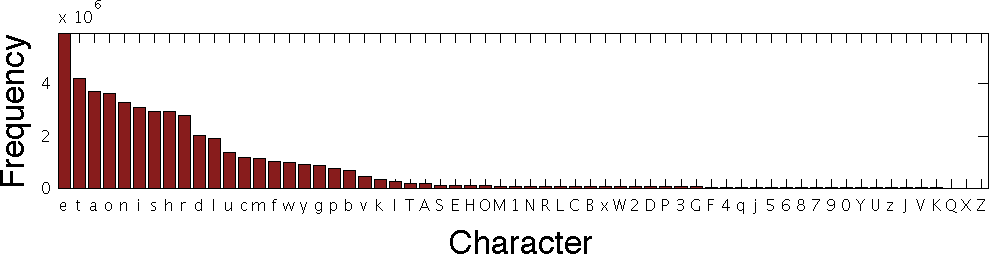
This says that, in the sample of text that was used, the character "e" appeared about 6x10E6 (or six million) times, while the character "t" appeared about four million times and so on.
In this exercise, you will measure the effectiveness of the Huffman
coding method on actual text.
-
This page features the text of
the first few pages of Charles Dickens's "A Christmas Carol."
Navigate your web browser to that page, highlight all the text (you
may do so by typing Ctrl-A), and copy the text (Ctrl-C).
-
Next, bring the encoding tab up in your web browser and paste
(using Ctrl-V) the text into the encoding window.
-
Select "Lightning" as your speed and click "Run Applet"
-
Click to see the histogram of character counts from the text. Does
it agree (loosely) with frequencies the larger sample given above?
-
Click again to see the resulting encoding tree.
-
Compare the histogram above to the tree.
-
Do the most frequent characters appear where you would expect
them?
-
What is the "shallowest" character (i.e., having the shortest
code)?
-
Are there any discrepancies or surprises that you can see?
-
Click again to see the character codes (after it finishes
processing them all).
-
How many 3 character codes are there? Why do you suppose there
aren't more?
-
Click again to find the compression ratio. How does this compare
to the compression savings from the your shorter text?
-
There are many more than 16 unique characters in this text
excerpt. Is this compression ratio a more reasonable claim than in
the previous exercise?
 This work is licensed under a
Creative Commons Attribution-Noncommercial-Share Alike 3.0 United
States License
.
This work is licensed under a
Creative Commons Attribution-Noncommercial-Share Alike 3.0 United
States License
.